Before you start
You need to be a System admin. Have the address of the page your staff use, for example your payroll provider's employee sign-in page.
Steps
- Open Settings and choose Company links.
- Choose Add link, at the top right, then choose what the link is for: Payslips, Pension, Staff handbook, Intranet, Rota, Expenses, Training, Benefits and wellbeing or IT helpdesk. HollyHR fills in a name, a description and a group for you. For a link that's none of these, choose Something else to start with a blank link. Company website comes first, address and all, once you've added your website: open Settings and choose Organisation to add it.
- Check the Name, then enter the Web or email address. You can paste it as it is, such as example.com or payroll@example.com: HollyHR adds the https:// or makes it an email link. The description and group, such as Pay and pension, are optional. Chose the wrong kind? Choose Change at the top of the form: what you've typed stays.
- Under Who sees it, choose Everyone, Managers or Admins, then choose Add link.
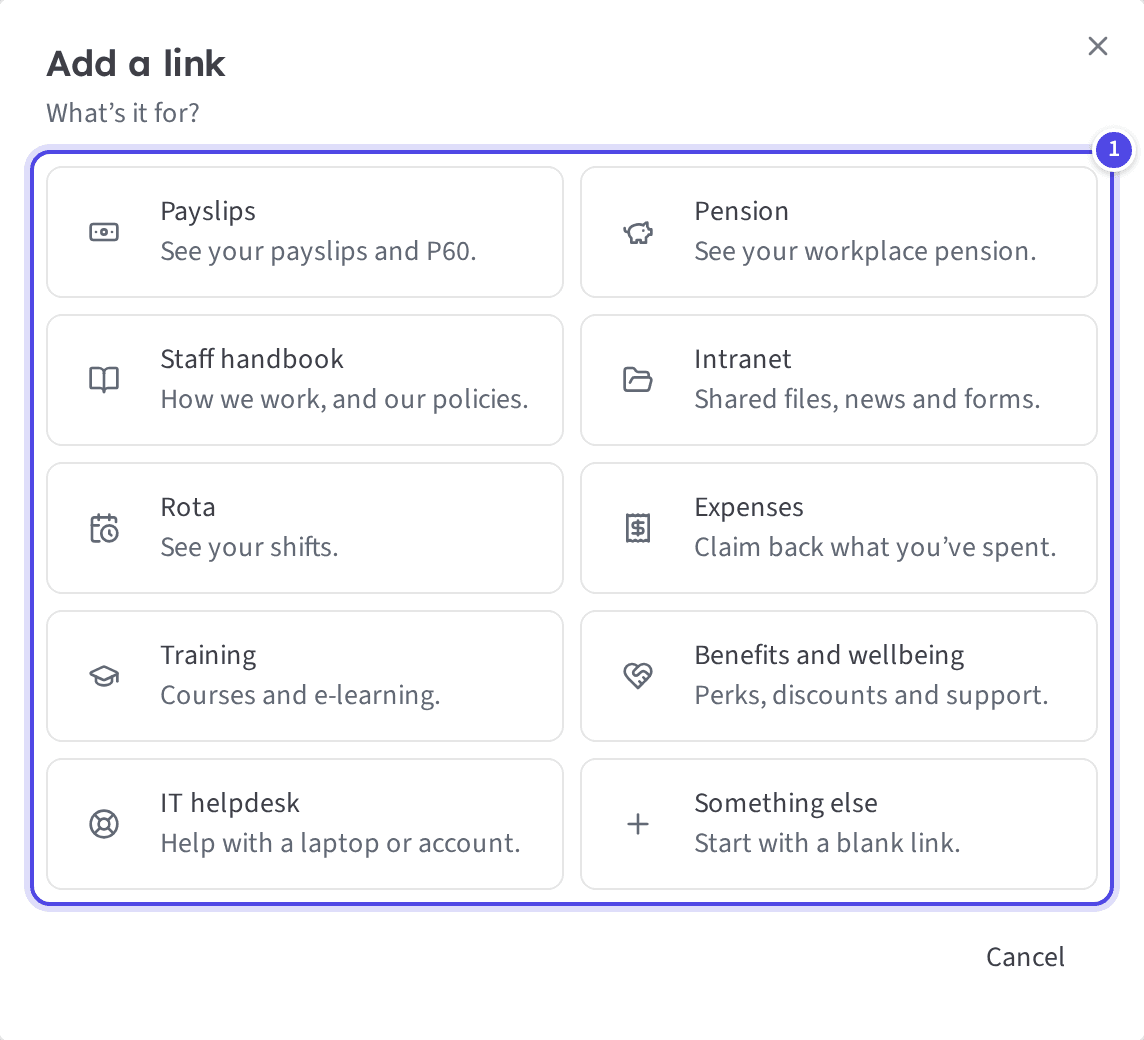
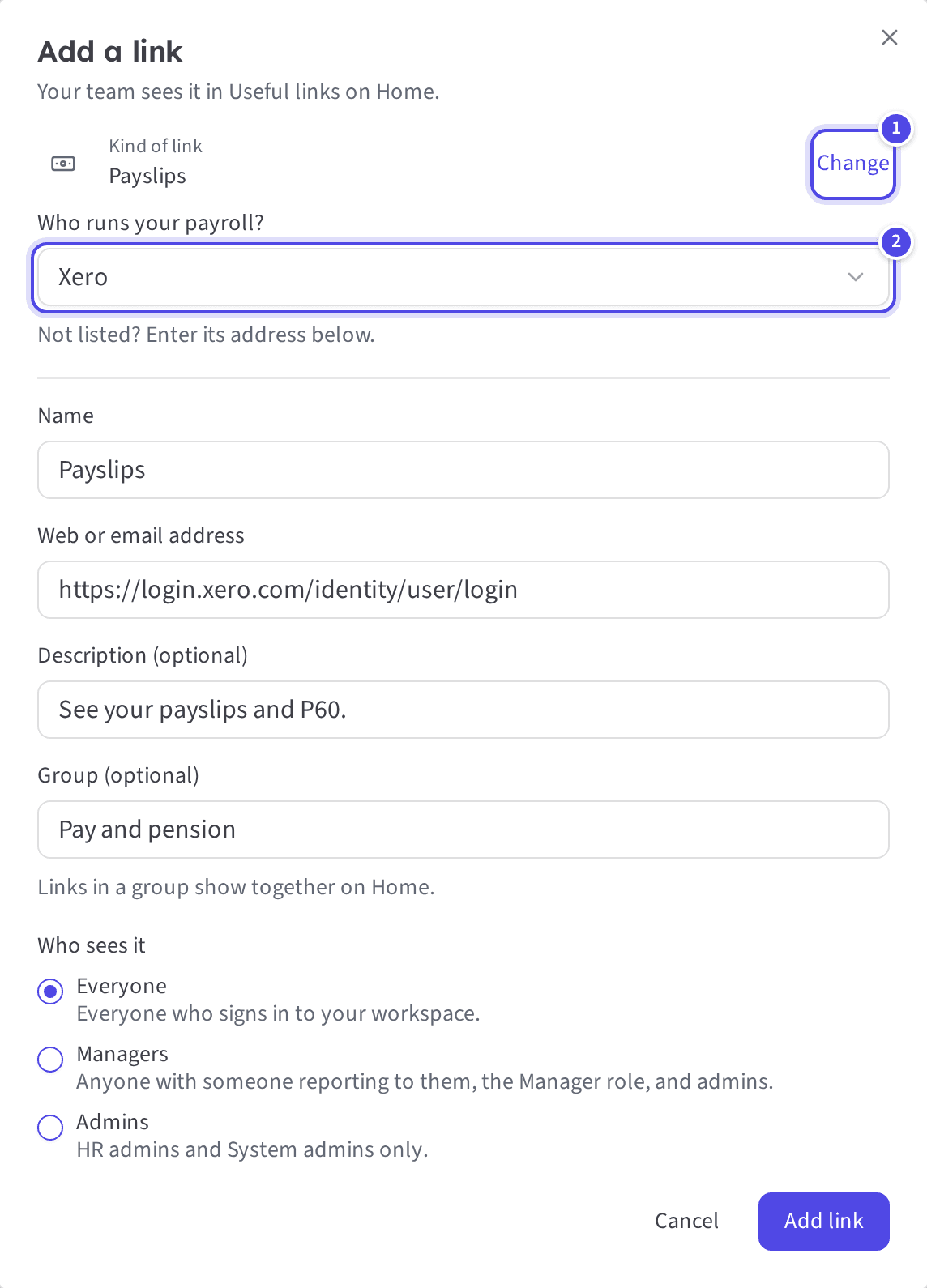
Pick your payroll or pension provider
When you choose Payslips or Pension, the form asks Who runs your payroll? or Who runs your pension?. Choose your provider, such as BrightPay, Xero, Sage, Nest or People's Pension, to fill in its staff sign-in page. Check it's the page your staff use: some employers have their own, and you can enter any address instead. Nothing is added until you choose Add link.
Your handbook: a link or a document
Link to your handbook when it lives online, such as on your intranet. If it's a file, share it in Documents instead: you can ask people to read it and see who has.
Who sees each link
Everyone is anyone who signs in to your workspace. Managers is anyone with someone reporting to them today, people with the Manager role, and admins. Admins is HR admins and System admins. A link isn't a lock: anyone you share its address with can still open the other website, so keep sign-in details out of it.
Change, move or remove a link
In Settings, choose Company links. Choose a link to change it, or open its ⋯ menu to choose Move up, Move down or Remove. Links with the same group show together under its name; a group's own ⋯ menu moves the whole group. Links with no group come first.
Site icons
When you save a link, HollyHR looks for the site's small icon on its front page and shows it beside the name. If it can't find one, the link shows a globe, or an envelope for an email address.
What happens next
- The links show in Useful links on Home for everyone who should see them. A web address opens in a new tab; an email address opens your mail app.
- Staff can ask Holly where something is, such as "Where's the pension site?". Holly only gives them links they can see.
If something goes wrong
It says to enter a web address or an email address. Copy the address from your browser's address bar, or type an email address. Spaces, and addresses that aren't a website or an email, aren't accepted. An http:// address is saved as https://.
Someone can't see a link. Check Who sees it. Managers needs someone to report to them, or the Manager role.
There's no Useful links card on your Home. The card shows once there's a link you can see. Until then, System admins may see it with links to add their payroll portal, pension, handbook or another kind of link; it stays away while Home shows Get set up, or once they choose Hide this card. They can always open Settings and choose Company links to start the list.